ယထာ အာေရာဂ် ၊ ေယာဗၺနံ ဗ်ာဓိ ဇရာ ပေရာသိတံ ။ ဧ၀ံ ဟိ ဇိ၀ိတံ သဗၺံ ၊ မရဏပၸရိေယာသိတံ ။

Tuesday, 20 November 2012

Chess(စစ္တုဘုရင္) နဲ႕ ဖဲကစားခ်င္သူမ်ား ေတာ္ေတာ္ေလးေကာင္းတဲ့ဂိမ္းေလးပါ

ပံုထဲကအျဖဴေရာင္ေကာင္မေလးက သူအလွည့္ေရာက္ရင္ သူကိုယ္တိုင္လက္နဲ႕လာေရႊ႕တာပါ...
ကို႕အလွည့္ေရာက္ရင္ေတာ့ စဥ္းစားလို႕မရေအာင္ ဖင္ကံုးျပလိုက္ ႏို႕ေတြပြတ္ျပလိုက္နဲ႕ စဥ္းစားလို႕မရေအာင္ အမ်ိဳးမ်ိဳးျမွဴဆြယ္ေနပါလိမ့္မယ္..Right Click နဲ႕ေရႊ႕ရမွာပါ..
ေတာ္ေတာ္ေကာင္းတဲ့ဂိမ္းလို႕ဆိုလို႕ရပါတယ္...
ဂိမ္းက Online ဂိမ္းမဟုတ္လို႕ ေဒါင္းလုပ္ဆြဲၿပီးမွ ကစားလို႕ရမွာပါ..
ကစားၾကည့္ခ်င္တဲ့ဂစ္စမာန္ေဘာ္ေဘာ္ေဒ ေအာက္ကလင့္ေလးကို ႏွိပ္လိုက္ပါ....
http://www.uplay-istrip.com/JeuxV4/setupDemoSexyChess.exe
ဂိမ္းက 134.79MB  ရွိပါတယ္.. Internet Download Mananger နဲ႕ေဒါင္းမွအဆင္ေျပမွာပါ...
Internet Download Mananger မရွိေသးတဲ့ ဂစ္စမာန္ေဘာ္ေဘာ္ေဒက ေအာက္ကလင့္မွာယူႏိုင္ပါတယ္
http://www.mediafire.com/?fugogu61hb6mdq5  ေဒါင္းလုပ္ဆြဲၿပီးလို႕ run ၿပီးလို႕ကစားခ်င္ရင္
အျဖဴေရာင္ေကာင္မေလးနဲ႕စၿပီးကစားရမွာပါ ...
မွတ္ခ်က္။  ။ Uplay ဂိမ္းတစ္ခုခုအရင္တင္ထားၿပီးလို႕ ေနာက္ထပ္ထပ္တင္ရင္ အဲဒီ Uplay ေပၚမွာပဲ
ႏွိပ္ၿပီးကစားရမွာပါ...


ကဲစစ္တုဘုရင္မွာ အလဲထိုးမဲ့ေကာင္မေလးေတာ့ ဆိုဖာေလးေပၚမွာ ပလက္ကေလးလွန္ၿပီးေစာင့္ေနၿပီးဗ်ိဳ႕           ေနာက္ထပ္ strip , sudoku ,belote နဲ႕ poker (ရွိဴးဖဲ) ဆက္ကစားခ်င္ေသးးတယ္ဆိုရင္ေတာ့  ေအာက္ကလင့္မွာ ေဒါင္းပီး run လိုက္ပါ...                           http://www.uplay-istrip.com/demo/

Sunday, 28 October 2012

SuperAntiSpyWare v.5.0.1148 pro FullVersion

 SuperAntiSpyWare v.5.0.1148 pro FullVersion တင္ေပးလိုက္ပါၿပီ။ ေအာက္က အဆင္ေျပတဲ့ Link မွာ Download ယူႏိုင္ပါၿပီခင္ဗ်ာ။
Download ===> Mediafire Link ( mmitd) ၊ Mediafire ၊ 4Shared ၊  ifile
4shared အေကာင့္မရွိသူမ်ားအတြက္ Username : mailserver.npt@gmail.
com Passwords: 12213456

"SHIFT + DELETE" နဲ႔ မွားဖ်က္မိတဲ့ Files ေတြ Recovery လုပ္ယူနည္း


"SHIFT + DELETE" နဲ႔ မွားဖ်က္မိတဲ့ Documents, Photos, Video, Music ,Email   ေတြကို ျပန္ယူႏိုင္ေပးႏိုင္ပါတဲ့အျပင္ Recycle Bin,Hard Drives, USB Thumb Drives, Camera Media Cards, Floppy Disks စ,တဲ႔ Storage Devices ေတြက မွားဖ်က္မိတာေတြကိုလည္း Recovery လုပ္ေပးႏိုင္ပါတယ္ ..။
 အသံုးျပဳပံုကလည္း အရမ္းလြယ္ပါတယ္ မိမိ Recovery လုပ္ခ်င္တဲ႔  Device ကိုေရြးပါ Start Scan ကို ႏွိပ္ပါ ... Recover လုပ္မဲ႔ Files ကို Select မွတ္ပါ .. Recover File ကိုသိမ္းထားမဲ႔ Folder ကိုေရြးေပးပါ...  ျပီးရင္ Recover File ကို ႏွိပ္ေပးလိုက္ရံုပါပဲ ...။
A quick and effective way to restore deleted or lost files.
It can also recover files that have been emptied from the Recycle Bin, permanently deleted files within Windows using the Shift + Delete, and files that have been deleted from within a Command Prompt.
  1.     Easily recover documents, photos, video, music and email.
  2.     Quickly recover files - even those emptied from the Recycle Bin.
  3.     Recover files after a hard drive partitioning error.
  4.     File recovery after accidental format - even if you have reinstalled Windows.
  5.     Recover files from Hard Drives, USB Thumb Drives, Camera Media Cards, Floppy Disks and other storage devices.


Avira Antivirus Offline Update လုပ္နည္း

အင္တာနက္ကြန္ရွင္းနဲ႔ ေ၀းေနသူမ်ားအေနျဖင့္ Avira Anti Virus Software သံုးစြဲသူမ်ား Offline update လုပ္လို႔ အဆင္မေျပသူေတြအတြက္ ဒီပို႔စ္က အကူအညီေပးႏိုင္ပါလိမ့္မယ္။အသံုးလည္း အေတာ္ေလး တည့္တယ္။က်ေနာ္ အခုေပးမယ့္ ေအာက္ကေဒါင္းလုဒ္လင့္ကို ေဒါင္းလုဒ္ျပီးလွ်င္ RAR ဖိုင္ကိုေျဖလိုက္ပါ။ ၎ဖိုလ္ဒါတြင္ ဖိုင္ (၂)မ်ိဳးေတြ႕ပါလိမ့္မယ္။
 (၁)avira_antivir personal en 
(၂) vdf-fusbundle ဇစ္ဖိုင္နဲ႔ ႏွစ္မ်ိဳးေတြ႕ရမွာပါ။

ဒီဗိုင္းရပ္စ္ေဆာ့၀ဲကို မိမိစက္ထဲထည့္သြင္းခ်င္ရင္ ၎ avira_antivir personal en ကို အင္စေတာေမာင္း လိုက္ပါ။ အင္စေတာထည့္သြင္းနည္းကိုေတာ့ က်ေနာ္မေျပာေတာ့ဘူး။ လုပ္တတ္မယ္လို႔ေမွ်ာ္လင့္ပါတယ္။ ၎ေဆာ့၀ဲကို အင္စေတာထည့္သြင္းျပီးလွ်င္...

Offline Update လုပ္နည္း... 

၁။ ၎ပရိုဂရမ္ကိုဖြင့္လိုက္ပါ။
 ၂။ ဖြင့္ျပီးလွ်င္ ေအာက္ပါပံုအတိုင္း Menu က Update ကိုႏွိပ္။ ျပီးေတာ့ Manualupdate ကိုဆက္ႏွိပ္ပါ။
၃။ ေနာက္ေဘာက္စ္တစ္ခုေပၚလာရင္ (၂) vdf-fusbundle ဇစ္ဖိုင္ကိုေရြးျပီး Open ႏွိပ္။ ျပီးလွ်င္ ခဏေစာင့္ပါ။ တစ္မိနစ္ ႏွစ္မိနစ္ေလာက္ၾကာရင္ (update) လုပ္တာျပီးသြားလွ်င္ OK

 ေဒါင္းလုဒ္... update Offline "Avira Antivirus"

ကဲ...ဒါပါပဲ။ အဆင္ေျပပါေစ...
 ေစာလင္းနက္စ္

Thursday, 20 September 2012

Window မွာ Hard Disk ကို Partiyion ခြဲနည္း/ ေပါင္းနည္း

Window 7 မွာ Hard Disk ကို Partition ခြဲနည္း / ျပန္ေပါင္းနည္း


မဂၤလာပါ ... သူငယ္ခ်င္းတစ္ေယာက္ေမးထားတာေလးကို မသိေသးသူအားလံုးအတြက္ မွ်ေဝလိုက္ပါတယ္... သူေမးထားတာကေတာ့ Window 7 မွာ Partition ကို ဘယ္လို ခြဲရမလဲ ..? ျပီးေတာ့ ဘယ္လိုျပန္ေပါင္းရမလဲ ..? ဆိုျပီးေမးထားေလးပါ....
ဘယ္ Software မွ သံုးစရာမလိုပါဘူး Window ေပၚမွာပဲ ခြဲ/ေပါင္း လို႔ရပါတယ္......။
Partition ခြဲနည္း
Start >> Computer ကို Right Click နဲ႔ Manage ကို ႏွိပ္ပါ (သို႔) Run > diskmgmt.msc  ကို ေရးထည့္ျပီး Enter ေခါက္လည္းရပါတယ္...။

က်န္တာေတြကို ပံုေလးေတြအတိုင္း ဆက္လုပ္ေပးသြားပါ..။

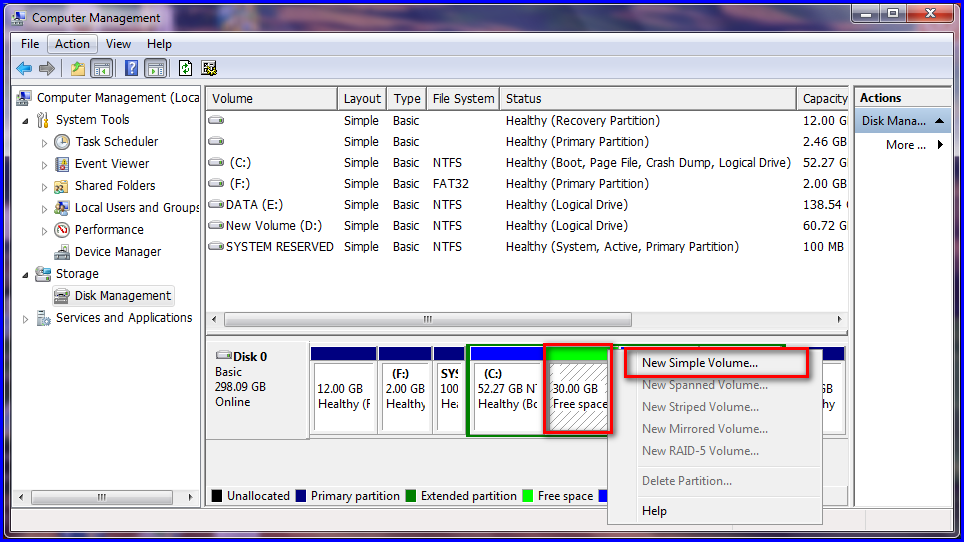
Drive (C:) ကေနဥပမာ အျဖစ္ ခြဲျပပါ့မယ္... အေပၚကပံုမွာျပထားတဲ႔အတိုင္း (C:) ေပၚကို Right Click ႏွိပ္ျပီး Shrink Volume ကိုေရြးပါ..။
ခဏေစာင့္ေပးပါ..။
ဒီေနရာမွာ မိမိ လိုခ်င္သေလာက္ ခြဲပါမယ္... 1GB ကို 1024 MB ရွိပါတယ္ ..(မိမိ လိုသေလာက္ တြက္ခ်က္ျပီး ေရးထည့္ေပးလိုက္ပါ)  က်ေနာ္ကေတာ့ 30GB ခြဲမွာမို႔ 30720 လို႔ေရးထည့္ေပးလိုက္ပါတယ္...။ ျပီးရင္ Shrink  ကိုဆက္ႏွိပ္လိုက္ပါ..။
ခုဆိုရင္ နာမည္မေပးရေသးတဲ႔ Partition ေလးတစ္ခုေရာက္လာပါျပီ... မျပီးေသးပါဘူး သူ႕ကို နာမည္ေပး ကင္ပြန္းတပ္ဖို႔ က်န္ပါေသးတယ္ ... နာမည္ေပးဖို႔  Right Click  ေထာက္ျပီး   New Simple Voulem  ကိုေရြးေပးပါ..။
Next အဆင့္ဆင့္ ႏွိပ္ေပးျပီး ...

နာမည္တစ္ခုေရြးေပးလိုက္ပါ .. က်ေနာ္ကေတာ့ G ကိုေရြးေပးလိုက္ပါတယ္...။
Next အဆင့္ဆင့္ ႏွိပ္ေပးျပီး Finsh ကိုႏွိပ္ပါ..။
 My Computer ကိုဖြင့္ၾကည့္လိုက္ပါ ေမာင္ G ေလးအျဖစ္နဲ႔ Patition ေလးတစ္ခု ေရာက္လာပါျပီ...။
Partition ခြဲနည္းကေတာ့ အဲ့ဒါပါပဲ ....။

Partiton ျပန္ေပါင္းနည္း
မလိုခ်င္ေတာ့လို႔ ျပန္ေပါင္းခ်င္ရင္ေတာ့... ေမာင္ G ကို အရင္ဆံုး သတ္ပစ္ရပါလိမ့္မယ္ :D  
Delete လုပ္ေပးရပါ့မယ္..။
ေမာင္ G ေပၚကို Right Click  နဲ႔  Delete Volume ကိုေရြးပါ..

Yes ကိုႏွိပ္ပါ...
ျပန္ေပါင္းဖို႔ အတြက္ (C)  ေပၚကို Right Click ႏွိပ္ျပီး Extend Volume ကိုေရြးပါ ....
Next အဆင့္ဆင့္နဲ႔ OK လိုက္ပါ..။
ခုဆိုရင္ ေမာင္ G ေလးမရွိေတာ့ပဲ (C) ထဲကို ျပန္ေရာက္သြားပါျပီ....။

 အားလံုး နားလည္လြယ္ေအာင္မို႔ အခ်ိန္ေပးျပီး ပံုေလးေတြနဲ႔ တင္ေပးလိုက္တာပါ ..
အားလံုး အဆင္ေျပၾကပါေစ...
ဝင္းကမာၻေက်ာ္ (နည္းပညာမွတ္တမ္း)

TuneUp Utilities 2013 13.0.2013.194 Final

TuneUp Utilities ကို အားလံုးသိၾကမွာပါ ကြန္ျပဴတာ ေလးတယ္ေႏွးတယ္ဆိုတဲ႔ သူငယ္ခ်င္းအတြက္ ေနာက္ဆံုး Version 2013 ကို တင္ေပးလိုက္ပါတယ္..။
TuneUp Utilities 2013 can quickly make your Windows operating system faster, easier to use, and more secure. And all operations performed on the operating system are completely safe, because all changes are monitored by TuneUp Rescue Center and can be undone at any time. All TuneUp Utilities modules can be accessed through a common interface that is divided into six categories. In addition, the main window also has three general buttons in a dark gray bar to the right at the top of the window. Pressing the first button starts the TuneUp Rescue Center module. The second button starts the TuneUp Update Wizard, which can be used to update TuneUp Utilities 2009 to the latest version over the Internet. The last button provides help and settings that you can use to customize the software package to meet your needs. 
                                              source..http://winkabarkyaw.blogspot.com/

Wednesday, 4 July 2012

windows 7 audio ျပႆနာ ေျဖရွင္းနည္း


ဒီနည္းလမ္းေလးကေတာ့ windows 7 ရဲ ့အသံျပႆနာ အေျဖရွာနည္းေတြထဲက တစ္နည္းဘဲျဖစ္ပါတယ္။
1.start / search / gpedit.msc / enter.
2.computer configuration / administrative templates / system / device installation / device installation restrictions / အေပၚဆံုးက allow administrators to override device installation restriction policies ကို Enabled / apply / OK.
3.ျပီးရင္ ေအာက္ဆံုးမွာ prvent installation of devices not described by other policy setings ကို Enabled / apply / OK .
4.အထက္ပါအဆင့္ေတြျပီးရင္ ၎ ေဘာက္ကိုပိတ္လိုက္ပါ။

ဆက္သြားပါအံုးမယ္...

5. Computer / Right Click / Manage .
6. Computer Management ေဘာက္က်လာရင္ / Device Manager ကို double click / ညာဘက္မွာ Sound , video and game controllers ေအာက္မွာရွိေနတဲ့ High Definition Audio Device ေပၚမွာ Right Click / Uninstall / OK.
7. Computer Management ေဘာက္ ရဲ ့ေနာက္ဆံုး icon ပံု ( scan for hardware changes ) ကို Click လိုက္ပါ။
8. Other devices ကိုရွာပါ. သူ ့ေအာက္က Audio Device on High Definition Audio Bus ေပၚမွာ Right Click / Update Driver Software ကို Click ေပး / Search automatically for updated driver software ကို Click ျပီးခဏေစာင့္ေနေပးပါ။
 9. installing driver software လုပ္ျပီးရင္ေတာ့ မိမိတို ့ၾကံဳ ေတြ ့ေနရတဲ့ windaws 7 audio ျပႆနာ ေျဖရွင္းျပီးသြားတာကို ေတြ ့ရပါလိမ့္မယ္.
 
ေနမင္းေခတ္

Share

Twitter Delicious Facebook Digg Stumbleupon Favorites More